
|
Introduction TS-233 Basic Setup
Advanced Setup |
The QTS Operating SystemLogging On to the TS-233 NASNote that QNAP instructs you to use the Qfinder Pro utility to log on to the NAS. This needs to be installed on your computer. I do not install programs on my computer if I can avoid it, especially if the provider of the program stands to benefit from performing undisclosed operations. Allowing for this difference, what I describe here is in the ‘Initializing QTS Using Qfinder Pro’ section of the User Guide, which starts on page 13 (Document Version: 7, 08/12/2022). On the previous page, I explained how I assigned my TS-233 a static IP address. For the sake of clarity in what follows, let's imagine that it was 192.168.0.20. The NAS device will always have this address because whenever it requests one (from the DHCP server in my router), this is what it will receive. To communicate with the NAS, it is enough to type '192.168.0.20' into the URL bar of a Web browser (I use FireFox). The browser will send a request message to this IP address and the Web server running on the NAS will receive it and send back a response message redirecting the browser to the full URL. At this point in the setup process, the full URL was http://192.168.0.20:8080/cgi-bin/quick/html/index.html#index. Later on it will be different, so there's no need to record this. The first page that the NAS Web server returned was trying to get me to buy the extended warranty. If a product fails in a time I consider too short, why would I repair and keep using it? (There are exceptions, such as a built-in refrigerator. Fie on you Sub-Zero!) I'd rather buy a different one and never again buy from the manufacturer of the one that failed. So, I made use of the 'Close' button and moved on. Again, here, my dislike of having personal information harvested leads me to avoid allowing the NAS to contact QNAP if I can work around it. I really did download the firmware update before I knew how I would be able to use it. I was pleasantly surprise to see the ‘Uploaded version’ option alongside ‘Latest available version’. The interesting question arises — where is the QTS operating system stored? I’ve installed my disks; has a piece of storage been set aside on one of them? My money is on the 4 GB of flash memory mentioned in the ‘Hardware Specifications’ section of the ‘TS-x33 User Guide’. Updating the NAS Operating SystemI was now at 'Start Smart Installation' and was informed that 'Firmware QTS 5.0.0.1870 is running'. I had already downloaded version 5.0.1.2277 from the QNAP Web site. It was delivered as a ZIP archive, so I extracted the single file inside, which had the extension '.img'. The size was around 200 Mbytes. At the prompt 'Specify Firmware Version', I selected 'Uploaded version' and then clicked 'Browse' to bring up the file upload window. I navigated to the aforementioned '.img' file, clicked 'Update' and the update process began. In less than ten minutes, it finished and the system restarted (‘do not close this page’ appeared.) Then, I was back at the beginning. Completing the Operating System SetupThe extended warranty pitch appeared again, so again I clicked ‘Close’. Then I was back to the page from which I updated the firmware. This time, however, I saw that QTS 5.0.1.2277, the version I just updated to, was running. At ‘Specify a Firmware Version’ I left ‘Current version’ selected and clicked ‘Next’. At the next screen, I first entered a new name for the NAS. This will replace the default, which was NASXXXXXX, where ‘‘XXXXXX’’ stands for the last half of the unit’s MAC address. I was in favor of the name ‘NatashaJunior’, but the boss decided on ‘NatashaTwo’ (if this seems odd, refer back to History of Natasha). It’s worth choosing something memorable here, as this is what you’ll see in Microsoft Windows. I don’t know if you can change it later. Also on this screen, I specified a new user name and password. This creates a new user account with administrator permissions and disables the default ‘admin’ account. This seems like a good idea, so I did not investigate how to keep the default account. I think that it is possible to re-enable it by jumping through some hoops in the event of a software catastrophe. Having done this, I clicked ‘Next’. Now I was at the ‘Set the date and time’ screen. I selected ‘Eastern Time(US and Canada)’ and ‘Synchronize with a time server automatically’. I entered the time server ‘us.pool.ntp.org’ and it was time to click ‘Next’ again. From page 368 of the QTS User Guide, I think I may be able to change this. The disadvantage of what I've got is that 1) I have a fixed IP address on a network otherwise served by DHCP and 2) the NAS does not receive the information included in a DHCP response in addition to the IP address, such as DNS server addresses. From my router, my IPv4 DNS Addresses are 71.243.0.12 (nsbost01.verizon.net) and 68.237.161.12 (nsnyny01.verizon.net). From the NAS, QTS is using 127.0.1.1 (huh?) and 8.8.8.8 (dns.google, Los Angeles). On ‘Configure the network settings’ I think I made my first mistake. I saw that ‘Use static IP address’ was selected and, as I had configured my router to supply a static IP address, I just clicked ‘Next’ and then 'Proceed' (not even paying attention to the DNS servers listed). I should have selected ‘Obtain an IP address automatically (DHCP)’. Then, the NAS would send a DHCP request to the router, be recognized by its MAC address and always get back the IPv4 address I chose (for example, 192.168.0.20). Instead, what I’ve done results in the NAS just using this IP address without reference to the DHCP server. Next up was the ‘Summary’ screen. After reviewing my settings, I clicked ‘Apply’ (a pleasant change from ‘Next’). I received the message ‘Warning : Initializing the system clears all drive data. Do you want to proceed?’. Unfazed, I clicked ‘Initialize’. There was a delay of several minutes, but not a lifetime. A screen appeared that read ‘Congratulations. You have finished all the steps for quick configuration’ and supplied a button labeled ‘Go to NAS Management’. Clicking this sent the browser to http://192.168.0.20:8080/. This is the QTS the login page. I saved this URL as a browser bookmark so that I could easily get there again. 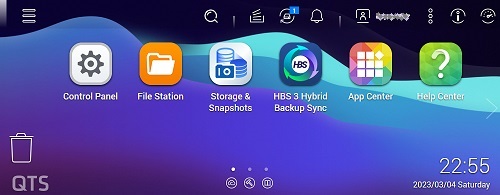
|
